How to register your organisation’s users in Oracle Enterprise Data Management Cloud and leverage them in approval policies
One of the most underutilised features in Oracle Enterprise Data Management Cloud Service (EDMCS) is the User Adaptor. It provides a native way to bring your organisation’s users directly into the EDM data model — making them available as node owners, approvers, and hierarchy members. In this blog, we will walk through exactly what the User Adaptor does, how to set it up, and how to connect it to approval policies.
Whether you are implementing governance workflows for the first time or looking to tighten your existing approval process, the User Adaptor is a foundational building block worth understanding thoroughly.
| What is it? The User Adaptor is a pre-built application type in EDMCS that registers all users in your organisation as managed nodes — making them usable across dimensions, properties, and approval workflows. |
Registering a User Application
To get started, navigate to the Register Application window in EDMCS and select the User Adaptor type. The registration process is deliberately streamlined — you are only required to provide two things:
- Application name
- Description
Everything else is handled automatically by the platform. Once registered, the application is pre-configured with the following out-of-the-box structure:
| Component | Details |
| Dimensions | One dimension — pre-created to hold all organisation users |
| Views | Two views: one as a flat list viewpoint, one as a hierarchy node set |
| Properties | Several predefined properties associated with each user node |
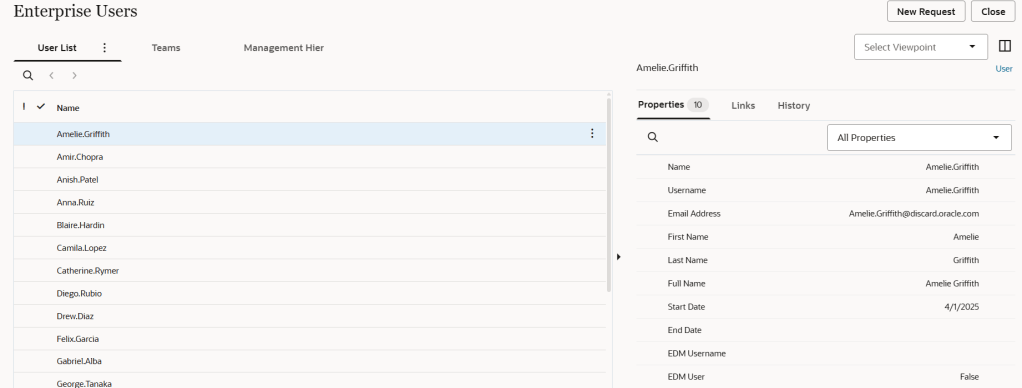
List viewpoint
Hierarchy Viewpoint
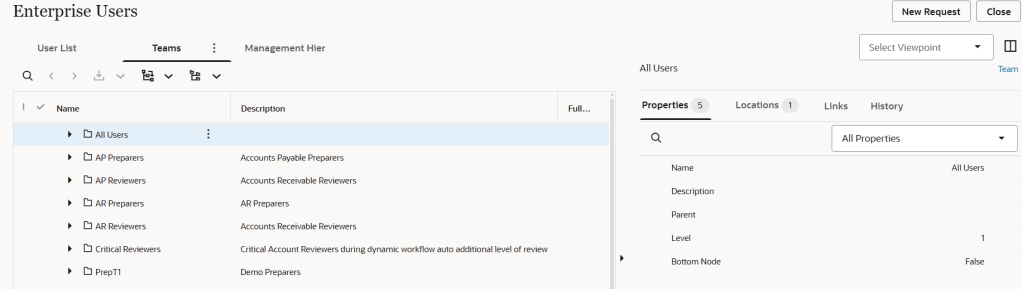
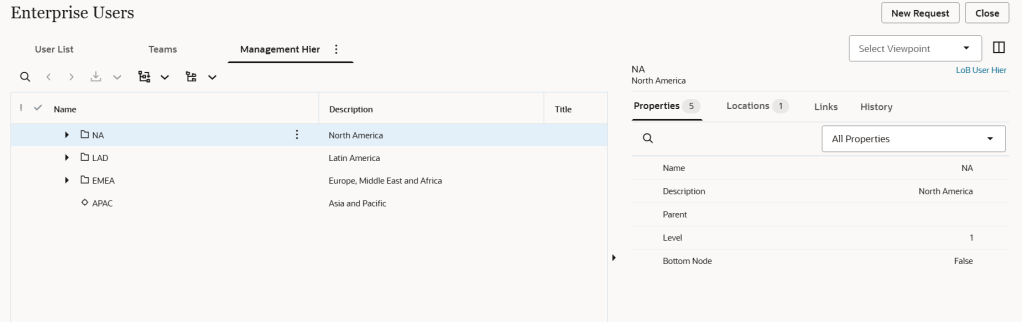
It is also possible to create additional viewpoints pointing to the same user dimension. A common and practical use case is to create a viewpoint that filters users by region — giving regional teams a scoped view of the users relevant to them, without duplicating any data.
| Tip: Creating region-specific viewpoints pointing to the shared user dimension is a best practice for organisations with distributed teams. It keeps governance lean while still enabling global visibility. |
Connecting Users to Other Applications via Node Ownership
Once your user application is registered, the next step is to create a property in your target application — for example, General Ledger (GL) — that references users as node owners. This is how you establish a link between your business data and the people responsible for it.
Creating a user property in GL
When creating the property at the application level, you must set the Subtype field to User. This is the key configuration step that unlocks user-specific behaviour:
- Setting Subtype to User restricts the node set selector to only show node sets from user applications
- You can then choose the appropriate node set from your registered user application
- The property will now appear on GL nodes and can be used to assign an owner
| Important: The Subtype must be set to ‘User’ at the application level — not the dimension or viewpoint level. Without this, the user application node sets will not appear in the selection. |
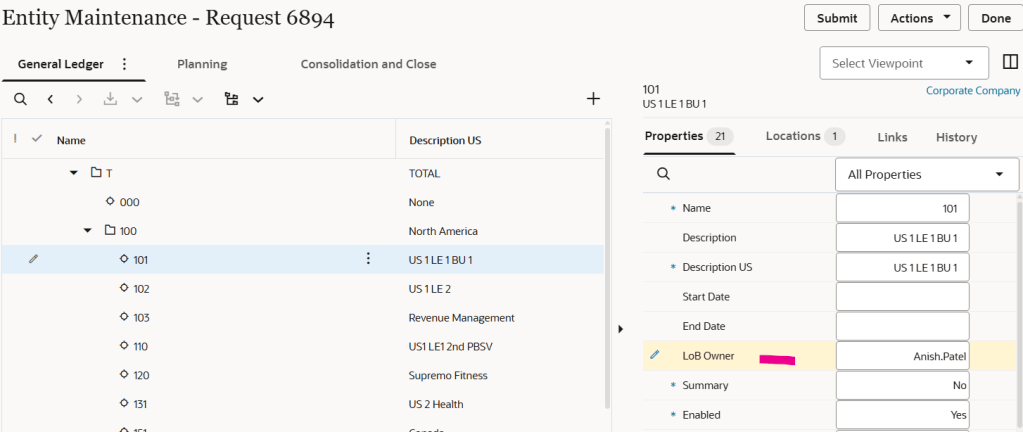
Once the property is created and saved, navigate to any GL node and you will see the new ownership property available for population. You can assign an individual user from the user application directly to each GL node.
Leveraging Users in Approval Policies
The real power of the User Adaptor comes through its integration with EDMCS approval policies. When configuring an approval policy, two approval methods make direct use of the user application: Ownership and Management Hierarchy.
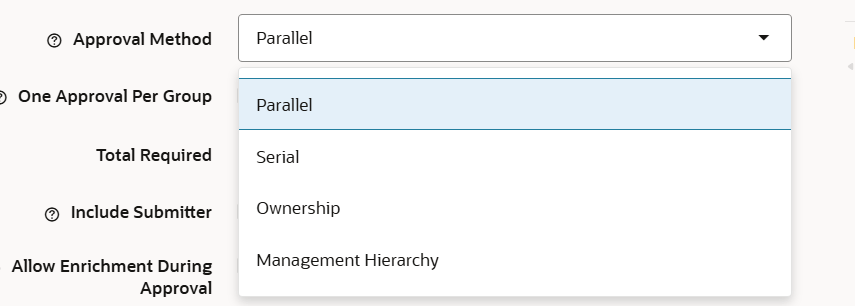
Approval method: Ownership
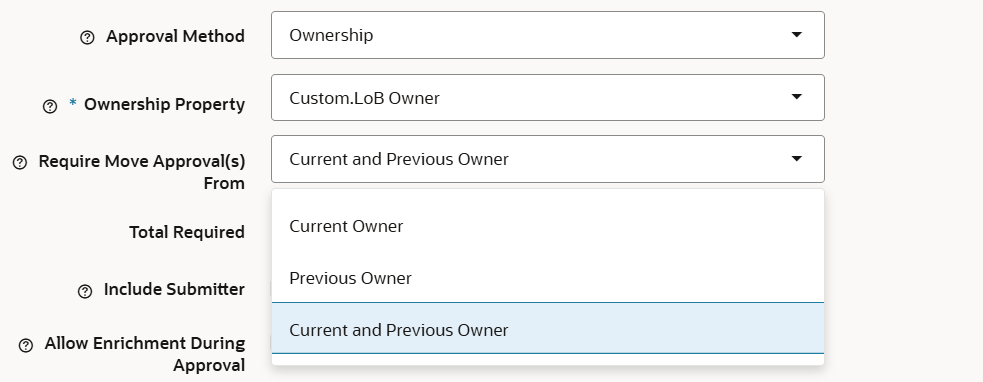
When Ownership is selected as the approval method, the policy routes approval requests to the owner of the node being changed. Configuration requires two inputs:
- Ownership property — this is the same user property you created on the GL application in the previous step
- Approver scope for node moves — when a node is moved from one parent to another, you can specify whether approval is required from the current owner, the previous owner, or both
| Use case: Ownership-based approvals are ideal when each account or entity has a designated data steward who must sign off on any changes to that node. |
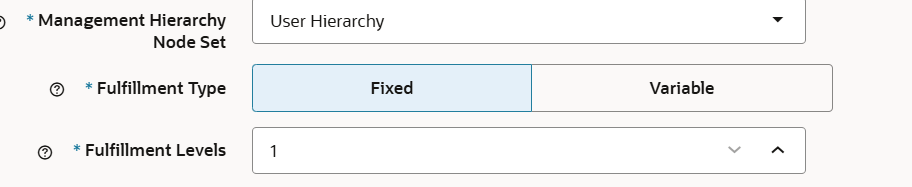
Approval method: Management hierarchy
When Management Hierarchy is selected, the approval is routed through a defined reporting structure rather than node-level ownership. You must provide a hierarchy set name, which can be either:
- The default hierarchy set — the standard user hierarchy pre-created by the User Adaptor
- A custom management hierarchy set — a viewpoint you have created to represent your organisation’s management structure (for example, by region or business unit)
- Fulfillment Type – if we select fixed as option then we have to provide the fixed number of users in the fulfillment levels tab.
- Fulfillment Type – if we select Variable as option then we have to provide the expression as per the requirement.
| Use case: Management hierarchy approvals work best when changes should escalate through a reporting chain rather than being owned by a single individual. Common in regulated industries. |
End-to-End Summary
Here is a concise walkthrough of the full setup process from start to finish:
| 1 | Register the user application Navigate to Register Application, select User Adaptor, provide a name and description. The dimension, views, and properties are created automatically. |
| 2 | Create regional or custom viewpoints (optional) Add additional viewpoints pointing to the user dimension to scope users by region, team, or function. |
| 3 | Create an ownership property in your target application In the GL (or other) application, create a property and set Subtype to User. Select the node set from your user application. |
| 4 | Assign owners to nodes Populate the ownership property on individual GL nodes by selecting the relevant user from the user application. |
| 5 | Configure the approval policy Create or edit an approval policy. Choose Ownership or Management Hierarchy as the approval method and link it to the appropriate user property or hierarchy set. |
Final Thoughts
The User Adaptor is one of the most elegant features in EDMCS. It bridges the gap between your identity directory and your data governance model — without requiring any custom integration or external tooling. Once your users are registered as managed nodes, you gain a consistent, auditable way to assign ownership, route approvals, and enforce accountability across your entire master data landscape.
If you have not yet explored the User Adaptor in your EDMCS implementation, this is a great place to start building a more structured and scalable governance framework.


Leave a Reply