The Evolution of Metadata Refresh Automation in EPM
If you’ve been working with Oracle EPM for a while, you know how far metadata refresh automation has come. What once required writing and maintaining multiple EPMAutomation and Groovy scripts just to get metadata out of EDM and into EPM has transformed into something far more streamlined and elegant — the Pipeline.
The Old Way: Scripts, Scripts, and More Scripts
In the earlier days, metadata refresh was a manual, script-heavy process. Teams would write EPMAutomation scripts to export metadata from EDM (Enterprise Data Management), then craft additional Groovy scripts to handle the import into EPM. While it got the job done, it came with its fair share of challenges — maintenance overhead, version control headaches, and a steep learning curve for anyone new to the process.
Enter the Pipeline
The Pipeline approach changed everything. Oracle took the complexity out of the equation by building the automation natively into the platform. No more juggling multiple scripts or worrying about compatibility between export and import processes. The heavy lifting is already done.
ARCHITECTURE DIAGRAM
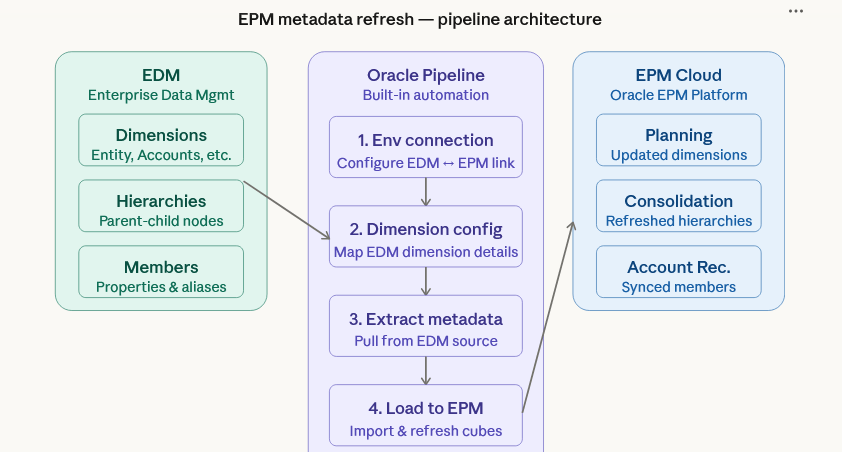
Prerequisites: Before You Build the Pipeline
Before jumping into pipeline creation, three setup steps need to be completed.
First, create the EPM connection details in EDM by navigating to Application → Inspect → Connection → Add, and test the connection to confirm it’s successful. Second, update the EDM connection details in EPM under Tools → Connection. Third, create EPM import jobs for all the dimensions you plan to refresh. These jobs are what the pipeline’s second step will reference during execution.
Getting these prerequisites right saves a lot of troubleshooting time later.
Building the Pipeline: A Step-by-Step Walkthrough
One of the great things about the pipeline approach is its flexibility. You can create a single pipeline to refresh all dimensions at once, or create individual pipelines per dimension. In practice, most teams set up both options — a full refresh pipeline for comprehensive updates and individual dimension pipelines for targeted refreshes when only specific dimensions have changed.
To get started, navigate to Data Exchange and click Create New Pipeline.
The pipeline is a two-step process: the first step handles exporting the dimension from EDM, and the second step handles importing it into EPM and refreshing the cube.
Step 1 — Export from EDM
Configure the following options in the first step of the pipeline:
EDM application connection name: the connection name for your EPM application
Type: Export Dimension by Name (EDMCS)
Connection name: the EDM connection created under Tools → Connection
Title: a descriptive name for this task
Dimension name: the specific dimension you want to export
Output file name: this must exactly match the file name used in the corresponding Planning import job
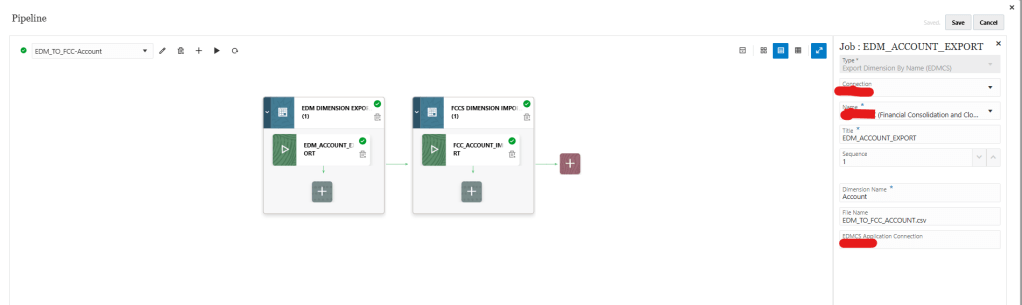
Step 2 — Import into EPM
Configure the following options in the second step:
- Type: Import Metadata
- Connection: Local
- Planning import job name: select from the dropdown (this is the job created during prerequisites)
- Title: a descriptive name for this step
- Refresh cube: select Yes to trigger an automatic cube recalculation after the load, or No if you prefer to refresh manually
- Error file name: provide a file name to capture details of any failed job runs
Need to refresh multiple dimensions in the same pipeline run? Simply click the + symbol to add more dimensions to the job — no need to create separate pipelines for each one.
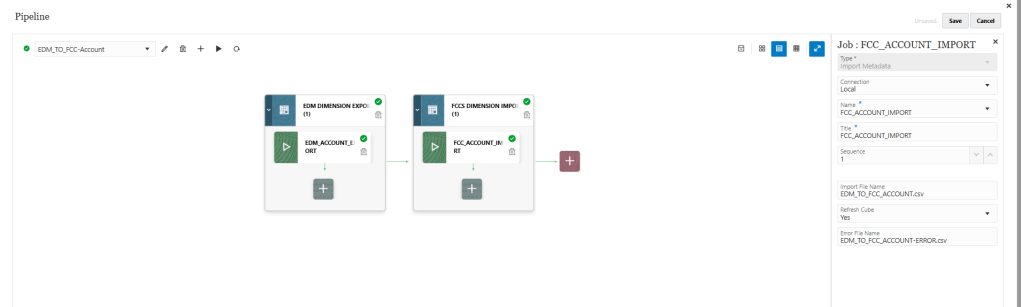
Monitoring Your Pipeline Jobs
Once the pipeline runs, you can monitor its status directly from the Data Exchange home page. A green symbol next to the pipeline indicates a successful run. A red symbol means the job has failed and needs attention. For a more detailed view of each run, navigate to Action → Process tab, where you’ll find the full execution history and any error messages.
you can find the status of the job under Action -> process tab.
Common Errors and How to Fix Them
Even with a well-configured pipeline, a few errors tend to come up repeatedly. Here’s what to watch for and how to resolve them quickly.
EDM to EPM connection failing — this is usually caused by an expired or changed password. Update the password in the connection settings, test the connection, and re-run the job.
EPM connection failed — similar to the above; revisit the connection details under Tools → Connection and verify they are current and accurate.
File name mismatch — the output file name specified in the pipeline’s export step must exactly match the file name referenced in the Planning import job. Even a small difference in naming — a space, a capital letter — will cause the job to fail.
EDM export failing due to validation error — this typically means there is a data quality issue in EDM itself. Check the EDM application for any validation warnings on the affected dimension before re-running.
The Bottom Line
The shift from custom EPMAutomation and Groovy scripts to Oracle’s native Pipeline has fundamentally changed how teams manage metadata refresh. What used to take hours of scripting, testing, and maintenance now takes a one-time configuration effort — and then the platform does the rest.
Whether you’re refreshing a single dimension or your entire metadata structure, the pipeline gives you a reliable, auditable, and low-maintenance path from EDM to EPM. Set it up once, and let Oracle do the heavy lifting.
 Site Title
Leave a comment